
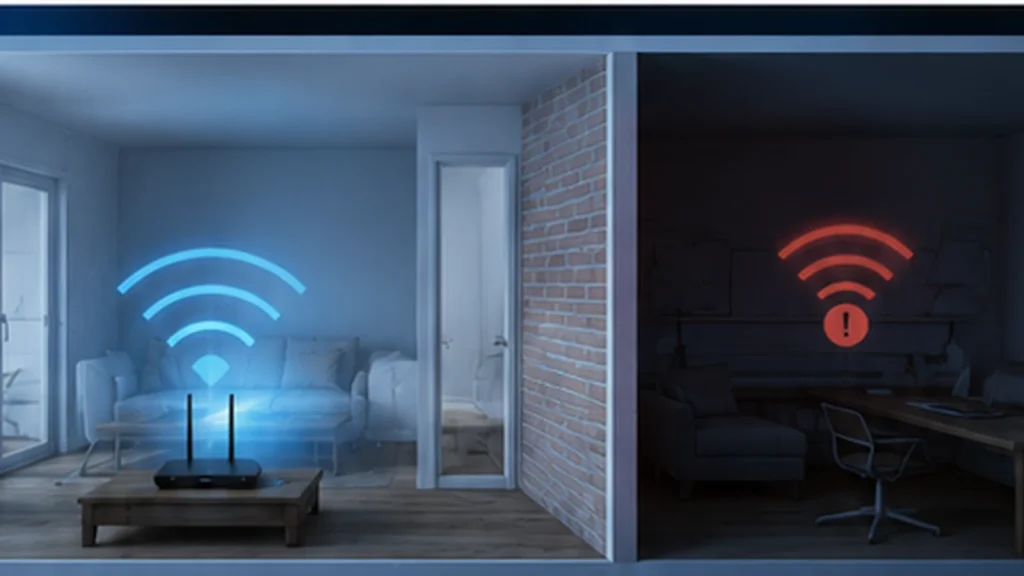
If your Wi-Fi is fast in most of the house but slow in one room, the problem is usually not your internet plan. It is more often a coverage problem between the router and that specific room.
- Run a speed test near the router.
- Repeat the same test in the slow room.
- Move to the doorway and test again.
- Try both 2.4 GHz and 5 GHz if your router exposes separate bands.
- Check whether the room is separated by concrete, brick, metal, mirrors, or large appliances.
The most common causes of slow Wi-Fi in one room
A wireless connection can still show several signal bars while delivering poor real-world performance. The useful signal has to travel from the router to your device and back again, and every obstacle along that path can make the connection less reliable.
1. The room is farther from the router
Wi-Fi becomes weaker as distance increases. A bedroom at the opposite side of the house, an upstairs office, or a room behind several walls may receive enough signal to connect but not enough to maintain high speed.
2. Walls and building materials are reducing the signal
Not every wall affects Wi-Fi equally. Lightweight interior walls may have a modest effect, while concrete, brick, metal structures, mirrors, and dense building materials can weaken or reflect the signal much more strongly.
3. The router is in a poor location
A router placed inside a cabinet, behind a television, low on the floor, at the far edge of the home, or beside large metal objects is starting with a disadvantage. Central and open placement usually produces more even coverage.
4. You are using the wrong Wi-Fi band for that room
Higher-frequency Wi-Fi bands can provide excellent speed, but they generally have less useful range through obstacles than 2.4 GHz. In a distant room, a slower-looking 2.4 GHz connection may actually be more stable than a weak 5 GHz connection.
5. Nearby devices are creating interference
Microwave ovens, cordless phones, Bluetooth devices, baby monitors, neighboring Wi-Fi networks, and other radio sources can make a crowded wireless environment harder to use. The effect is often more noticeable on 2.4 GHz because that band is widely shared.
6. The room has a local device problem, not a Wi-Fi problem
Sometimes one laptop, phone, television, or game console is the real issue. Older Wi-Fi hardware, driver problems, aggressive power-saving settings, or background downloads can make a device appear to have poor Wi-Fi even when the room itself is fine.
How to fix slow Wi-Fi in one room
Work from the simplest changes to the most expensive. This avoids buying a mesh system or extender when a placement change would have solved the problem.
Step 1: Establish a baseline near the router
Connect the same device to Wi-Fi close to the router and run a speed test. This gives you a reference point. If the connection is already slow near the router, the issue is broader than one room and you should investigate the router, modem, internet connection, or device first.
Step 2: Test the slow room from several positions
Test near the doorway, near the center of the room, and near the place where you normally use the device. Large differences inside one room often reveal a local obstruction or weak edge-of-coverage area.
Step 3: Improve router placement
Place the router in an open area instead of inside furniture. If possible, keep it more central to the rooms where Wi-Fi matters most. Avoid placing it directly beside large metal objects or other electronics.
Step 4: Compare Wi-Fi bands
Use 5 GHz when it remains strong enough to deliver good speed. In a more distant room, test 2.4 GHz as well. Modern routers often choose bands automatically, but manual testing can still tell you whether band selection is part of the problem.
Step 5: Restart and update the router
A restart is not a permanent cure for a poor network design, but it is an easy diagnostic step. Also check whether your router manufacturer provides firmware updates that address stability, compatibility, or performance issues.
Step 6: Add coverage only when you actually need it
If the room remains weak after placement and band testing, your home may simply need an additional wireless point.
| Option | Best suited to | Main consideration |
|---|---|---|
| Wi-Fi extender | One modest coverage gap | Simple, but placement matters and performance can vary |
| Mesh Wi-Fi | Several weak areas or multi-room coverage | Convenient roaming and broader coverage |
| Wired access point | Homes where Ethernet can be run | Often gives the most predictable backhaul performance |
When should you use mesh Wi-Fi?
A mesh system makes more sense when the problem is larger than one small dead zone. Large homes, multiple floors, long layouts, and several rooms with weak coverage are stronger candidates than a single room that can be fixed by moving the router.
If you use wireless mesh nodes, remember that the node itself needs a good connection to the rest of the mesh. Putting a node directly inside a dead zone can produce a weak backhaul and disappointing results. Place it between the main router and the area that needs better coverage.
Quick summary
- Fast Wi-Fi near the router but slow Wi-Fi in one room usually points to coverage, obstacles, or interference.
- Test several positions in the room before changing hardware.
- Central, open router placement can improve coverage without additional equipment.
- Compare 2.4 GHz and 5 GHz based on real performance in that room.
- Test multiple devices so you do not mistake a device problem for a network problem.
- Use an extender, mesh system, or wired access point only when the existing router cannot cover the space reliably.
Frequently asked questions
Why is Wi-Fi fast in one room but slow in another?
The rooms may have different distances, walls, furniture, metal objects, or sources of interference between them and the router. Even a small change in location can affect wireless performance.
Is 2.4 GHz or 5 GHz better for a distant room?
It depends on the home and router, but 2.4 GHz often remains usable farther from the router, while 5 GHz can deliver higher speeds when its signal is strong enough. Test both in the actual room.
Will a Wi-Fi extender fix one slow room?
It can, especially for a single coverage gap, but it needs to be placed where it can still receive a good signal from the main router. An extender placed inside the worst part of a dead zone has little good signal to repeat.
Should I buy a new router first?
Not necessarily. Check placement, bands, interference, and device behavior first. A new router may help if the existing hardware is old or inadequate, but it cannot eliminate every building-layout problem by itself.
